
General Information
The Welcome Ceremony, Conference Inauguration, Dialogue Session and Keynote sessions will be held at Nanyang Auditorium, Nanyang Technological University (NTU).
Day 1, Tuesday, 2 June 2026
Parallel Session 1 is held at The Arc - Learning Hub North, Nanyang Technological University (NTU).
Day 2, Wednesday, 3 June 2026
Parallel Session 2 is held at The Arc - Learning Hub North, Nanyang Technological University (NTU) and National Institute of Education (NIE).
Parallel Session 3 and the 4-Track Programme are held at National Institute of Education (NIE).
Day 3, Thursday, 4 June 2026
Parallel Sessions 4 and 5, Keynote Plenary, Plenary Fireside Chat and Unconference are held at the National Institute of Education (NIE).
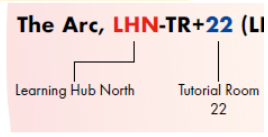
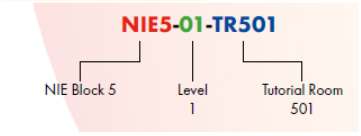
Room locations are identified by the following convention:
The Arc, LHN-TR+22
[LHN - Learning Hub North
TR+22 - Tutorial Room 22]
NIE5-01-TR501
[NIE5 - NIE Block 5
01 - Level 1
TR501 - Tutorial Room 501]
Access the interactive NTU campus map here: https://maps.ntu.edu.sg/
Access the NIE campus map here: https://www.ntu.edu.sg/nie/about-us/visiting-nie
| Location | Room | Day 1, 2 Jun | Day 2, 3 Jun | Day 3, 4 Jun |
|---|---|---|---|---|
| Nanyang Auditorium @ NTU | Information/ Registration counters | 8.00am – 5.00pm | 8.00am – 1.00pm | 8.00am – 12.30pm |
| The ARC @ NTU | LHN-TR+14, Level 1 | 10.30am – 12.30pm | 10.00am – 12.00pm | NA |
| National Institute of Education | NIE2-01-TR212 | NA | 1.00pm – 4.30pm | 12.30pm – 5.45pm |
Registration is only available on Day 1, from 8.00am to 9.00am, and is located at Nanyang Auditorium (NYA) Foyer at NTU. You will receive your nametag and lanyard, which must be worn for entry into the conference locations and sessions throughout the conference period.
All food served is Halal while vegetarian food is available at designated food counters.
| Date | Morning Tea Break/Light Refreshment | Lunch | Afternoon Tea Break |
|---|---|---|---|
| Day 1 Tuesday, 2 June 2026 |
Nanyang Auditorium Foyer | Nanyang Auditorium Foyer | Nanyang Auditorium Foyer |
| Day 2 Wednesday, 3 June 2026 |
Nanyang Auditorium Foyer | Outside LT1 and linkway between block 2 and 3 | |
| Day 3 Thursday, 4 June 2026 |
| Pick-up Time | Pick-up Location | Drop-off Location | No. of Buses | Bus Seater |
|---|---|---|---|---|
| 2 June 2026, Tuesday | ||||
| 7:50 AM | Boon Lay MRT | Nanyang Auditorium (NYA), NTU | 2 | 40 |
| 8:00 AM | Boon Lay MRT | Nanyang Auditorium (NYA), NTU | 2 | 40 |
| 8:10 AM | Boon Lay MRT | Nanyang Auditorium (NYA), NTU | 2 | 40 |
| 8:20 AM | Boon Lay MRT | Nanyang Auditorium (NYA), NTU | 2 | 40 |
| 8:30 AM | Boon Lay MRT | Nanyang Auditorium (NYA), NTU | 2 | 40 |
| 3 June 2026, Wednesday | ||||
| 7:50 AM | Boon Lay MRT | Nanyang Auditorium (NYA), NTU | 2 | 40 |
| 8:00 AM | Boon Lay MRT | Nanyang Auditorium (NYA), NTU | 2 | 40 |
| 8:10 AM | Boon Lay MRT | Nanyang Auditorium (NYA), NTU | 2 | 40 |
| 8:20 AM | Boon Lay MRT | Nanyang Auditorium (NYA), NTU | 2 | 40 |
| 8:30 AM | Boon Lay MRT | Nanyang Auditorium (NYA), NTU | 2 | 40 |
| 1:00 PM | Nanyang Auditorium (NYA), NTU | NIE | 1 | 40 |
| 1:05 PM | Nanyang Auditorium (NYA), NTU | NIE | 1 | 40 |
| 1:15 PM | Nanyang Auditorium (NYA), NTU | NIE | 1 | 40 |
| 4 June 2026, Thursday | ||||
| 7:50 AM | Boon Lay MRT | Nanyang Auditorium (NYA), NTU | 2 | 40 |
| 8:00 AM | Boon Lay MRT | Nanyang Auditorium (NYA), NTU | 2 | 40 |
| 8:10 AM | Boon Lay MRT | Nanyang Auditorium (NYA), NTU | 2 | 40 |
| 8:20 AM | Boon Lay MRT | Nanyang Auditorium (NYA), NTU | 2 | 40 |
| 8:30 AM | Boon Lay MRT | Nanyang Auditorium (NYA), NTU | 2 | 40 |
| 12:15 PM | Nanyang Auditorium (NYA), NTU | NIE | 1 | 40 |
| 12:20 PM | Nanyang Auditorium (NYA), NTU | NIE | 1 | 40 |
| 12:30 PM | Nanyang Auditorium (NYA), NTU | NIE | 1 | 40 |
eduroam Setup for Windows/iOS
Pre-requisite: Must be a participating institution in the eduroam initiative project
(https://eduroam.org/).
1) Select ‘eduroam’ from the list of available Wi-Fi networks.
2) Key in your username and password following the format below.
| NIE staff | |
| NIE student | |
| NTU staff | |
| NTU student | |
| NTU alumni | |
| Visitor / Guest | DomainUsername@DomainName (e.g. |
3) Click on ‘Connect’
4) Eduroam is now connected.
eduroam Setup for Android
1) Forget eduroam in your wifi settings if you’ve connected to it previously.
- Go to “Settings” , “Connections” and select “Wi-Fi”.
- Tap on the gear icon on the right , disable “Auto reconnect”.
- Under “Available networks”, tap and hold on “eduroam”.
- Tap “Forget Network” on the pop-up menu.
2) Under “Settings”, “Connections” and select “Wi-Fi”.
- Select “+ Add network”.
- Key in “eduroam” in “Network Name”. Under “Security”, select “WPA WPA2-Enterprise”. Under “Identity”, type in the username of the network id (i.e., <username>@staff.main.ntu.edu.sg or <username>@student.main.ntu.edu.sg or <username>@assoc.main.ntu.edu.sg). In “CA certificate”, choose “Don’t validate”.
- In “EAP method”, choose PEAP and in “Phase2 authentication” select MSCHAPv2. Lastly tap “Save”.
3) When successfully connected to a nearby wireless network, you should see eduroam as “Connected”. If there are changes to username or password, repeat step 1 to 3 to re-enter.
NTU
Self-Registration Guide for ‘NTU Guest’ Wireless SSID via Computer/Mobile Phone
For those with a Singapore-registered mobile phone number. For those without, please approach the registration counter to obtain a NTU Wireless log-in account.
- SMS the word “register” to 93722830 to request for an Account*.
- You will receive a confirmation reply shortly on your mobile phone (in about 1 to 2 minutes).
For example:
Username: 9999999
Password: heloNTU88
Domain: Guest - The username will be <your phone number>. Password will be a random text and is case-sensitive. Please choose domain as Guest.
- The account will expire at 12.30 am the next day. Please apply via SMS again for a new account if required.
*Note: The text message is case-insensitive, i.e. it does not matter if it is composed in upper- or lower-case, or a combination of both.
NIE
Self-Registration Guide for ‘NIE Guest’ Wireless SSID via Computer/Mobile Phone
- Connect to SSID “NIE Guest” (no password required).
- Enter your email address that will be used to receive the OTP.
- Press “Get OTP” to retrieve the password that will be sent to your email address.
- Press “OK” and 15 minutes of grace period will be provided to access the email server.
- The password will be sent to the email inbox. (Check the spam/junk folder if you do not receive it.)
- Press the “I agree to the Terms and Conditions of Use” button before logging in to the “NIE Guest” wi-fi.
- Read carefully for the details of use policy.
- Press the “Agree” button and you will be redirected back to the log in page.
- Fill in the email address and password that has been sent.
- Tick the box to accept the Terms and Conditions of use.
- Press the “Log In” button to complete the authentication process.
- Fill in the NIE Wi-Fi feedback form or directly surf the Internet.
- The ‘NIE Guest’ account is valid for 24 hours from the time of registration.
Please proceed to NIE2-01-TR212 to claim your lost item(s).